Add an online booking system to your website with TOWeb 14
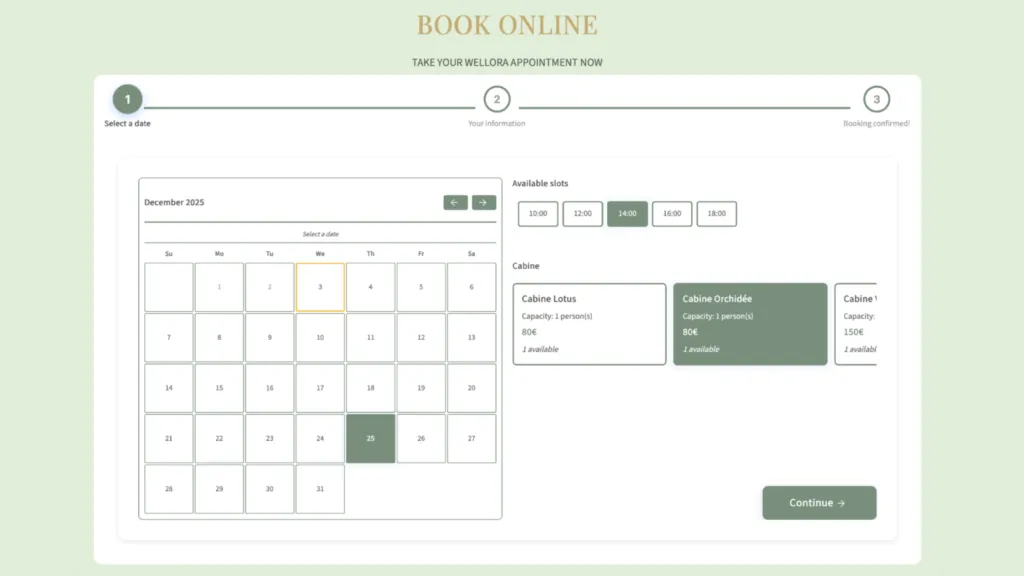
With version 14, TOWeb introduces a fully integrated online booking system, directly usable inside your website, without any paid subscription and without external plugins or third-party services.
This feature is designed for anyone offering services, time slots, rentals, or scheduled activities, and who wants visitors to book easily from the website.
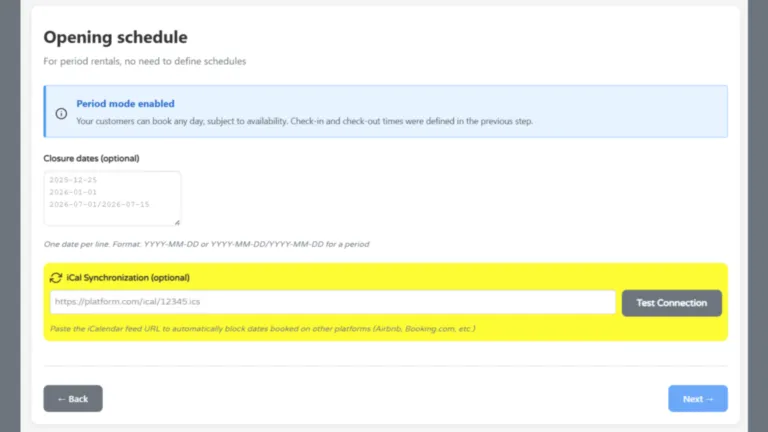
Version 14.01 adds an important improvement: automatic synchronization with an external iCal/ICS calendar. This makes it possible to connect a TOWeb site to platforms such as Airbnb or Booking and avoid double bookings.
This article explains how the booking widget works, its practical use cases, and how the new iCal synchronization fits into real-world workflows.
Online booking as a common expectation
In many industries, online booking has become an expected feature.
It is especially relevant for:
- vacation rentals (cottages, guest houses, apartments)
- healthcare and wellness professionals
- craftsmen and service providers
- coaches, trainers, and consultants
- photographers, beauty salons, estheticians
- associations, clubs, and workshop organizers
Allowing visitors to book directly from the website simplifies the customer journey, reduces back-and-forth by email or phone, and improves perceived availability.
With TOWeb 14, online booking is built in natively and remains easy to set up.
The integrated booking widget in TOWeb 14
The booking widget allows you to configure different types of services:
- time-slot based bookings
- full-day or multi-day bookings
- services linked to resources (room, equipment, staff, etc.)
You can define fixed or variable pricing, block specific dates, and manage reservations from the site’s Back-Office.
Each booking can trigger confirmation emails, and the full history remains accessible at any time.
A live example is available in the new WELLORA template.
The widget documentation is available here:
https://www.lauyan.com/en/bookings.html
Automatic iCal / ICS synchronization
Version 14.01 introduces a particularly useful feature for rental websites: synchronization with an external iCal/ICS calendar.
This option allows you to connect the TOWeb booking widget to a schedule already managed on another platform (Airbnb, Booking, Abritel, VRBO, etc.).
How it works
On the external platform, simply retrieve the iCal (.ics) URL associated with your property or resource.
This URL is then entered in the booking widget settings in TOWeb.
Once the site is published:
- existing reservations from the external platform are automatically taken into account
- the corresponding dates are blocked in the TOWeb widget
- no site republication is required when new bookings occur
TOWeb acts as a secondary calendar synchronized with the main one.
Practical benefits of iCal synchronization
This synchronization offers several concrete advantages:
- availability stays consistent across multiple platforms
- the risk of double bookings is greatly reduced
- the TOWeb site can remain online without daily maintenance
- setup is limited to entering a single URL
It is a suitable solution for hosts who want to keep using specialized platforms while also offering booking directly on their own website.
Screenshot of the “iCal / ICS URL” configuration field in the TOWeb 14.01 interface
A native solution without external dependencies
The booking widget operates entirely within the TOWeb environment:
- no third-party plugins
- no additional subscriptions
- no external service dependency
- full control over your data
Reservations are managed from the Back-Office, alongside the site’s other features.
Adding a booking widget in TOWeb 14
Adding the widget only takes a few steps:
- Add a new topic to your website: an online booking form.
- Next, select your desired booking type (either by date or by time) and choose the starting template that best matches your activity from the available options.
- Once you've created your booking topic, click the "Configure Widget" button and follow the wizard to modify the options and replace the default text with your own (resources, hours, rates, ...). You can enter your iCal/ICS URL in the Schedule step.
- At the end of the setup wizard, remember to click the Save Configuration button.
- Publish your website.
Learn more about TOWeb 14
Upgrading to TOWeb 14
To upgrade:
→ Install TOWeb 14 on the computer where your current TOWeb version (1 to 13) is installed, launch TOWeb 14, then click License / About in the File step.
→ Or use your latest TOWeb purchase invoice and go to the TOWeb license upgrade page.
If you encounter any issues to upgrade, you can contact our sales team by using our contact form.