Mega Menu presentation
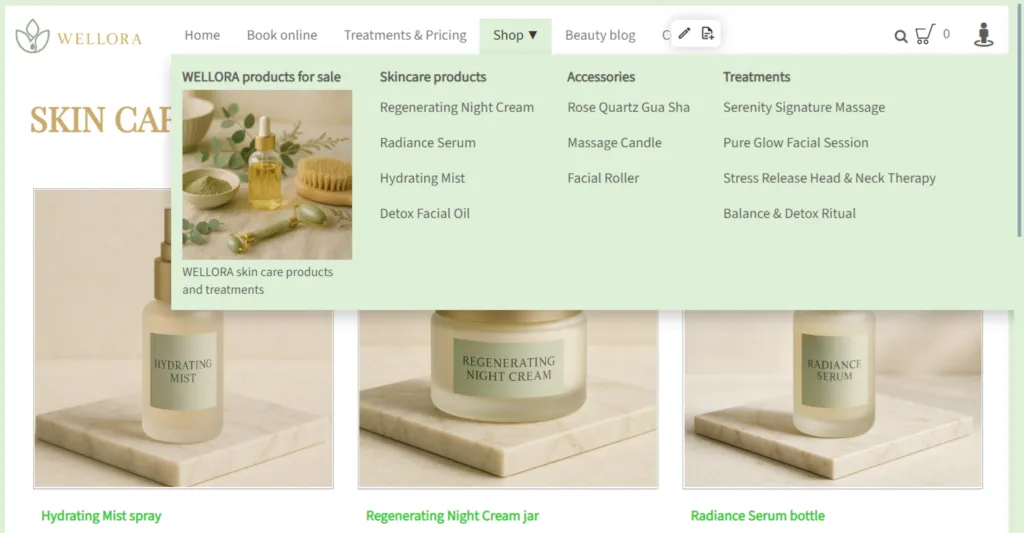
The goal is simple: to enhance navigation, facilitate access to important pages, and make the site more readable, especially when it contains many sections.
What is a Mega Menu?
Unlike a standard menu, it can contain:
- multiple columns of links
- category titles
- a presentation image
- a brief descriptive text
This type of menu is particularly suited for sites:
- e-commerce
- showcase sites with many pages
- institutional or association websites
- sites offering multiple services or ranges of products
Mega Menus in TOWeb 14
In TOWeb 14, Mega Menus are directly integrated into the site’s navigation system.
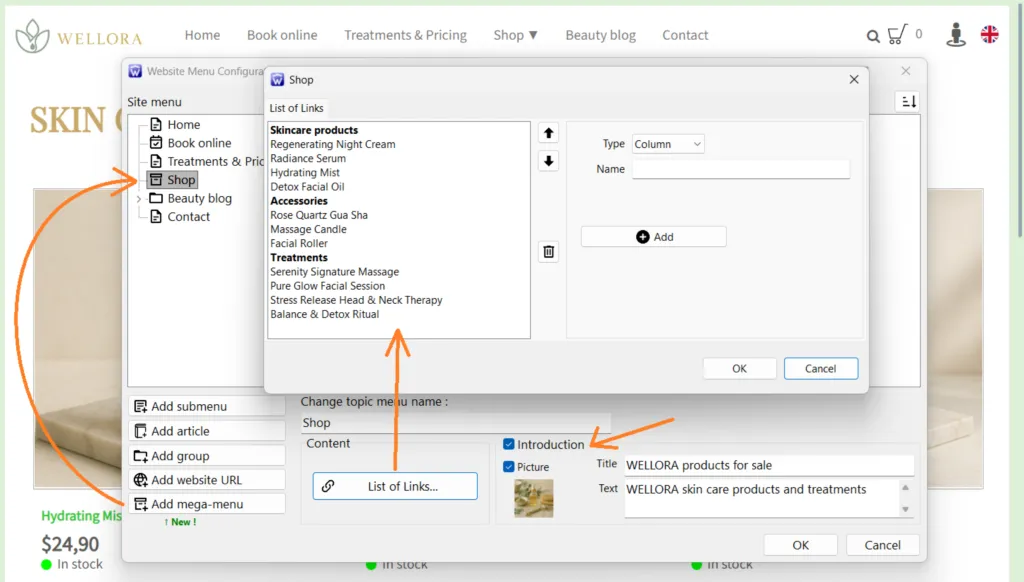
They can be configured from the main menu management window, accessible at any time via the shortcut CTRL + M.
Each Mega Menu can consist of:
- an optional first column with an image, a title, and text
- several link columns, each potentially representing a category
- a fully customizable structure according to your needs
It is possible to create multiple Mega Menus on the same site.
The WELLORA template provided with TOWeb 14 includes an example of a Mega Menu for its “Shop” section.
It illustrates a typical usage with a visual presentation followed by 3 categories of products organized in columns.
Why use a Mega Menu?
Specifically, it allows to:
- reduce the number of clicks needed to access a page
- make important categories visible right from the first level
- avoid overly long dropdown menus
- clearly structure the information
On an e-commerce site, it allows for immediate presentation of the different product ranges.
On a showcase site, it makes access to services, key pages, or practical information easier.
Customization and styles
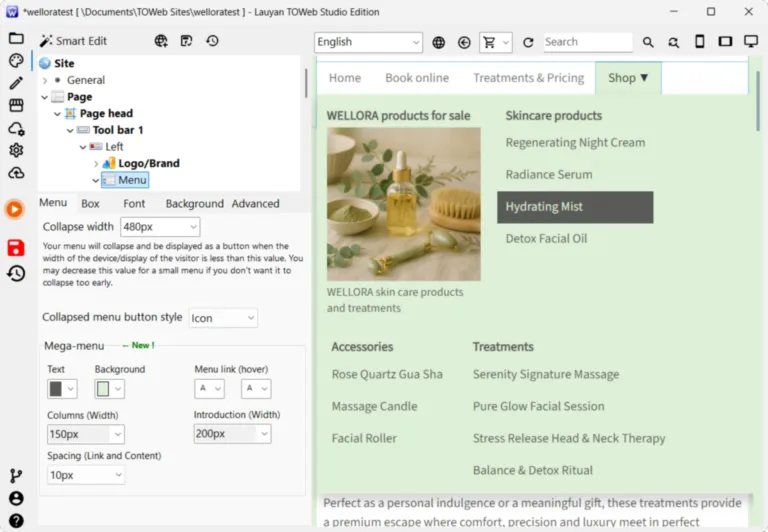
- the main colors
- the column widths
- the spacing
- the content alignment
Setting up a Mega Menu in TOWeb 14
- Open the main menu management of your site CTRL + M.
- Click on the Add mega-menu button (see screenshot of the previous paragraph "Mega Menus in TOWeb 14").
- Check the Introduction box (optional) if you want your mega menu to start with a column containing a representative photo and/or text of its content.
- Click on the List of links to add your links and columns.
- Finally, adjust the styles of the mega menus on your site from the Menu element in the CSS editor of the Theme (see screenshot in the previous paragraph "Customization and styles").
- Publish the site.
A menu designed for scalable websites
It allows for the addition of new sections or categories without undermining the entire existing navigation.
Combined with other new features of TOWeb 14 (tabs, side menu, quick section search), it serves as an effective tool to keep a site clear and organized, even as it becomes more complex.
Learn more about TOWeb 14
The full list of TOWeb 14 new features is available here:
Upgrading to TOWeb 14
To upgrade:
→ Install TOWeb 14 on the computer where your current TOWeb version (1 to 13) is installed, launch TOWeb 14, then click License / About in the File step.
→ Or use your latest TOWeb purchase invoice and go to the TOWeb license upgrade page.
If you encounter any issues to upgrade, you can contact our sales team by using our contact form.