Create and send invoices directly from your TOWeb shop
Until now, TOWeb e-commerce users had to manually copy order information into a spreadsheet or external invoicing software. TOWeb 14 now includes a complete invoicing system built right into the back office: configuration, generation, and delivery to the customer — all in just a few clicks.
No third-party software, no extra subscription — it's included in the e-Commerce edition of TOWeb 14.
A built-in online invoicing system turns a time-consuming administrative task into an automated, reliable, and value-generating process. It's an investment that quickly pays for itself for e-commerce websites: less administrative time, fewer invoicing errors, lower printing/mailing costs, faster payment, better customer satisfaction, improved traceability, legal compliance, and a stronger commercial strategy.
Why You'll Love It
- Time savings — no more copying order information into other software
- Zero errors — amounts, taxes, and customer details are automatically retrieved from the order
- Professional image — your invoices display your logo, contact information, and legal notices
- Compliance — sequential numbering, mandatory information (SIRET number, intra-community VAT number), archiving
- Customer satisfaction — your customer receives their invoice immediately in the confirmation email
- Traceability — each invoice is archived and accessible from the back office
- No external dependency — everything is hosted on your own server, no third-party cloud service
How to Use Invoicing in TOWeb
Step 1: Enable Invoicing in TOWeb
In the TOWeb application, ensure you are using a version 14.04 or higher before accessing the "Back-office > Orders + Invoices" screen and check the "Create and manage invoices" options. Then re-publish your e-commerce website so the online back office includes the feature.
Step 2: Configure Invoice Settings
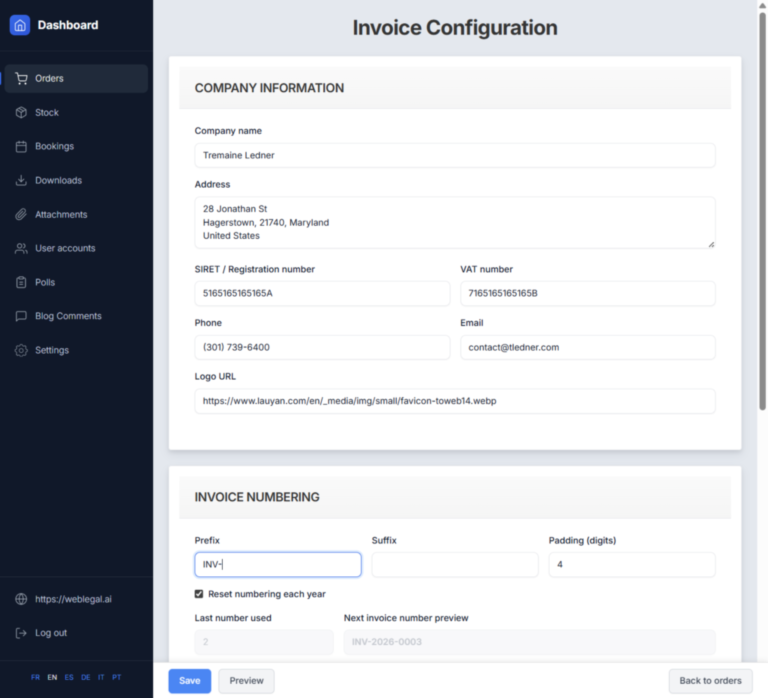
In your website's online back office, a new blue "Invoice Settings" button appears at the top right of the orders list.
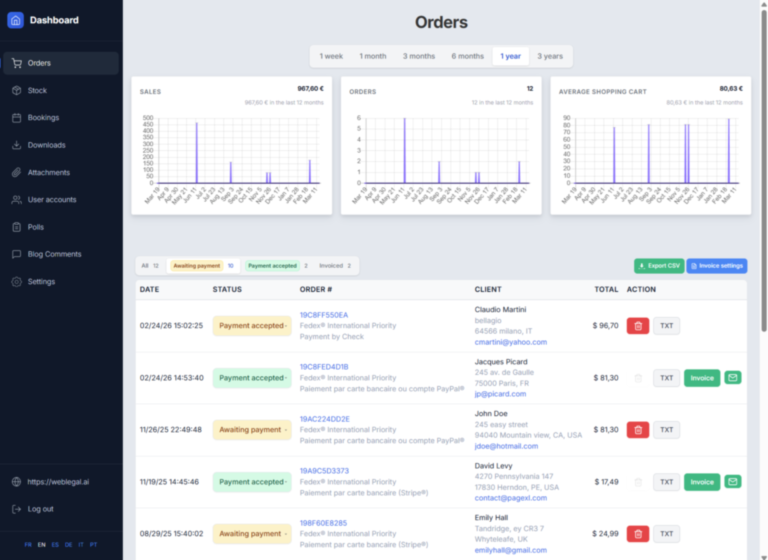
Clicking it opens the "Invoice Configuration" page with:
Company Information:
- Company name
- Full address
- Registration number (SIRET, NIF, etc.)
- VAT number
- Phone and email
- Logo URL (displayed on the invoice)
Invoice Numbering:
- Prefix (e.g., INV-, FACT-)
- Suffix (optional)
- Number of digits (padding, e.g., 4 → 0001)
- Yearly reset option
- Next number preview (e.g., INV-2026-0003)
Step 3: Generate an Invoice from an Order
Invoicing integrates seamlessly into your daily workflow.
When you change the status of an order—for example, when a payment arrives and you change the order status from "Awaiting payment" to "Payment Confirmed"—a dialog box offers you the following options:
- Check "Generate Invoice" to automatically create the invoice
- Notify the customer by email with a customizable message.
In this message, simply insert the variable {INVOICE} so that the link to the invoice is automatically included in the email sent to the customer.
Example message:
Hello, we have received your payment.
Your invoice: {INVOICE}
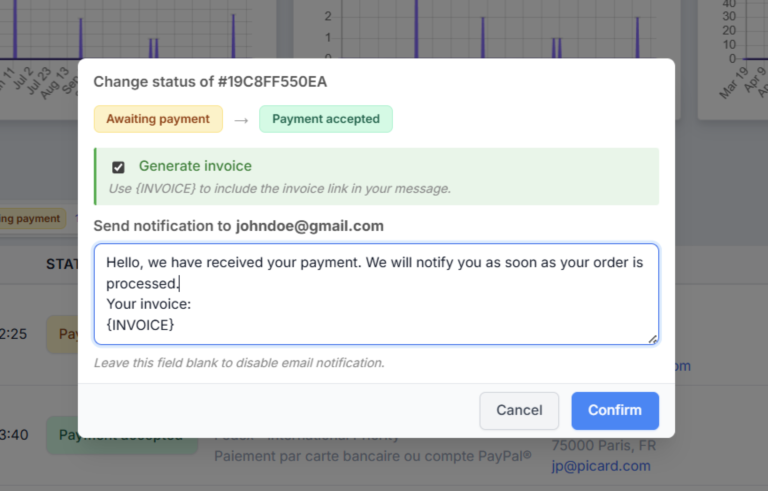
The customer then receives an email containing a direct link to their invoice. No attachments to manage, no additional steps required.
For orders already confirmed, a green "Invoice" button appears directly in the order list. A single click is all it takes to generate or view the corresponding invoice.
Everything is included, nothing to install
The back office is available in 6 languages (French, English, Italian, Spanish, German, and Portuguese) to suit your international clientele.
Available now
Integrated invoicing is available starting with the TOWeb 14.04 update, included in the e-Commerce edition.
Already using TOWeb e-Commerce? Update and activate invoicing in minutes.
Don't have the e-Commerce edition yet? Now's the time to take your online store to the next level.
Upgrading to an E-Commerce or Studio license of TOWeb 14
To upgrade:
→ Install TOWeb 14 on the computer where your current TOWeb version (1 to 13) is installed, launch TOWeb 14, then click License / About in the File step.
→ Or use the information of your latest TOWeb purchase invoice and go to the TOWeb license upgrade page.
If you encounter any issues to upgrade, you can contact our sales team by using our contact form.