

Our new online service Mailzy can now be natively integrated with TOWeb and PageXL to manage, free of charge and independently of your websites, your contacts’ subscriptions to your mailing lists. Available online, Mailzy is a highly effective e-marketing tool to reach people interested in your services or products directly and on a large scale. A mailing list can multiply your turnover and your number of visitors tenfold!
By following the instructions below, you will be able to unlock the full potential of the subscription forms on your TOWeb or PageXL website, whose default behaviour is very limited:
- In PageXL, sign-up forms send you an email notification with the address to subscribe, but you then have to manage the contact list yourself...
- In TOWeb, you had to use the "Mailing List" i-Service running on a PHP script (so your host had to support it) to feed a contact list that remains tied to the website and cannot then be used...
With Mailzy, all the management of your mailing lists is seamless, both subscriptions and unsubscriptions, and you have a real tool to get started with email marketing and boost your sales.
STEP 1: CREATE A LIST IN MAILZY
Click here to log in to Mailzy in your browser, then go to the Lists menu and click the button to create a new mailing list :
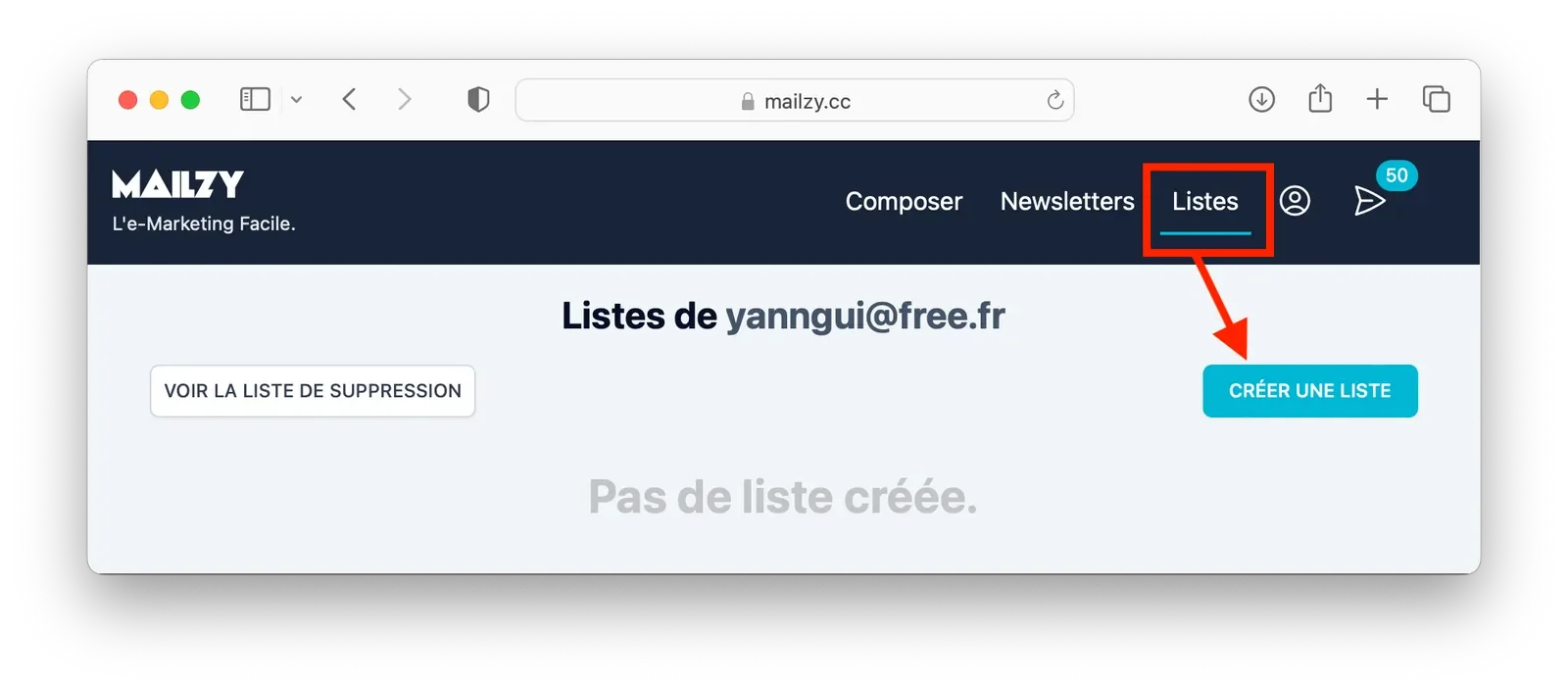
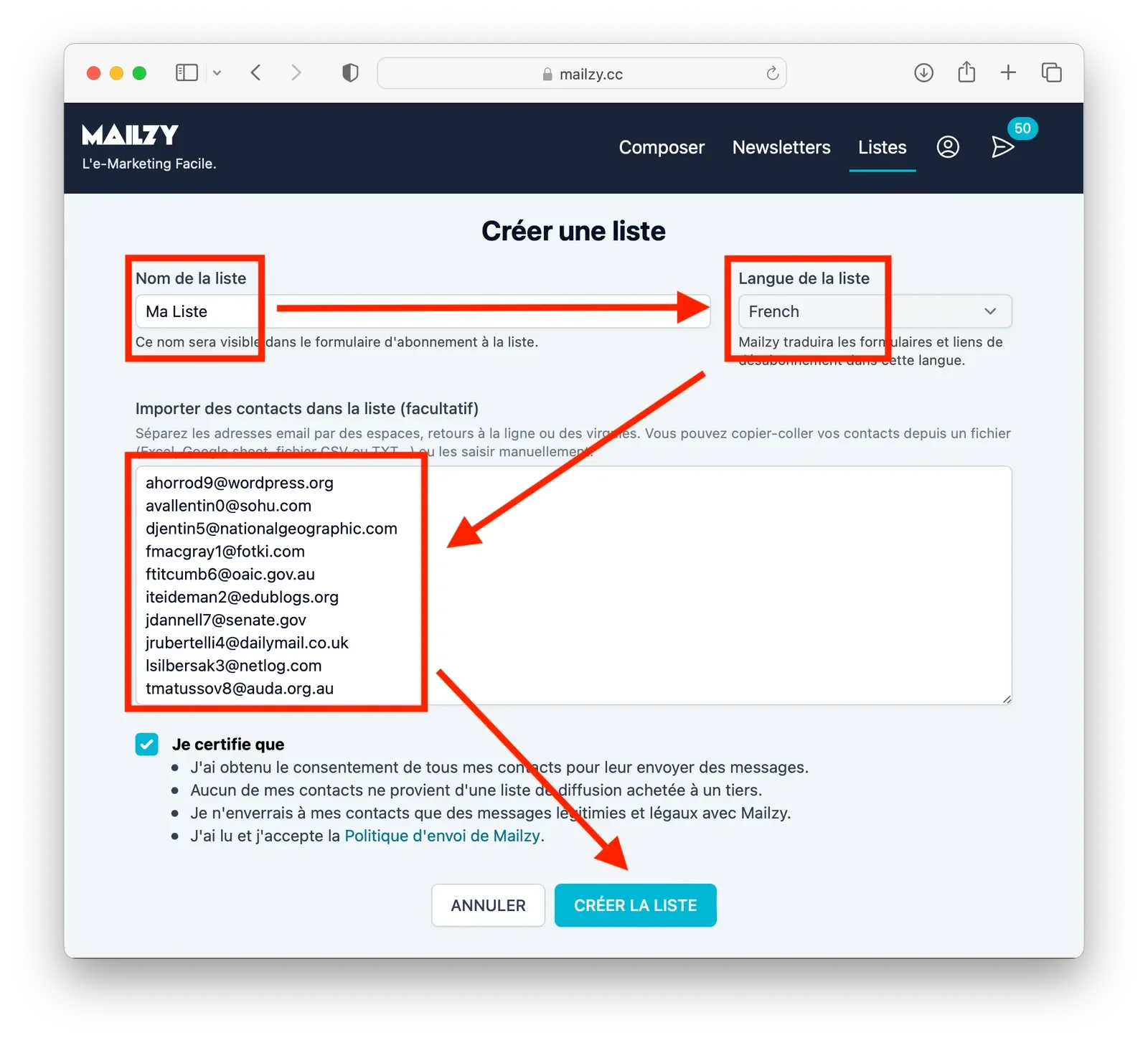
Now give your list a name, choose its language (Mailzy will translate the subscription and unsubscription forms and links for your mailing list into this language), then copy and paste the addresses of your first contacts if you already have some. If you have no contacts yet, you can create a blank list by leaving this field empty. If you had contacts in your TOWeb website, you can use the button Publish > Inform your contacts > Export your contacts to Mailzy to copy and paste them here:
Once the list has been created, you will find it in Mailzy. Click the SHARE button as shown below:
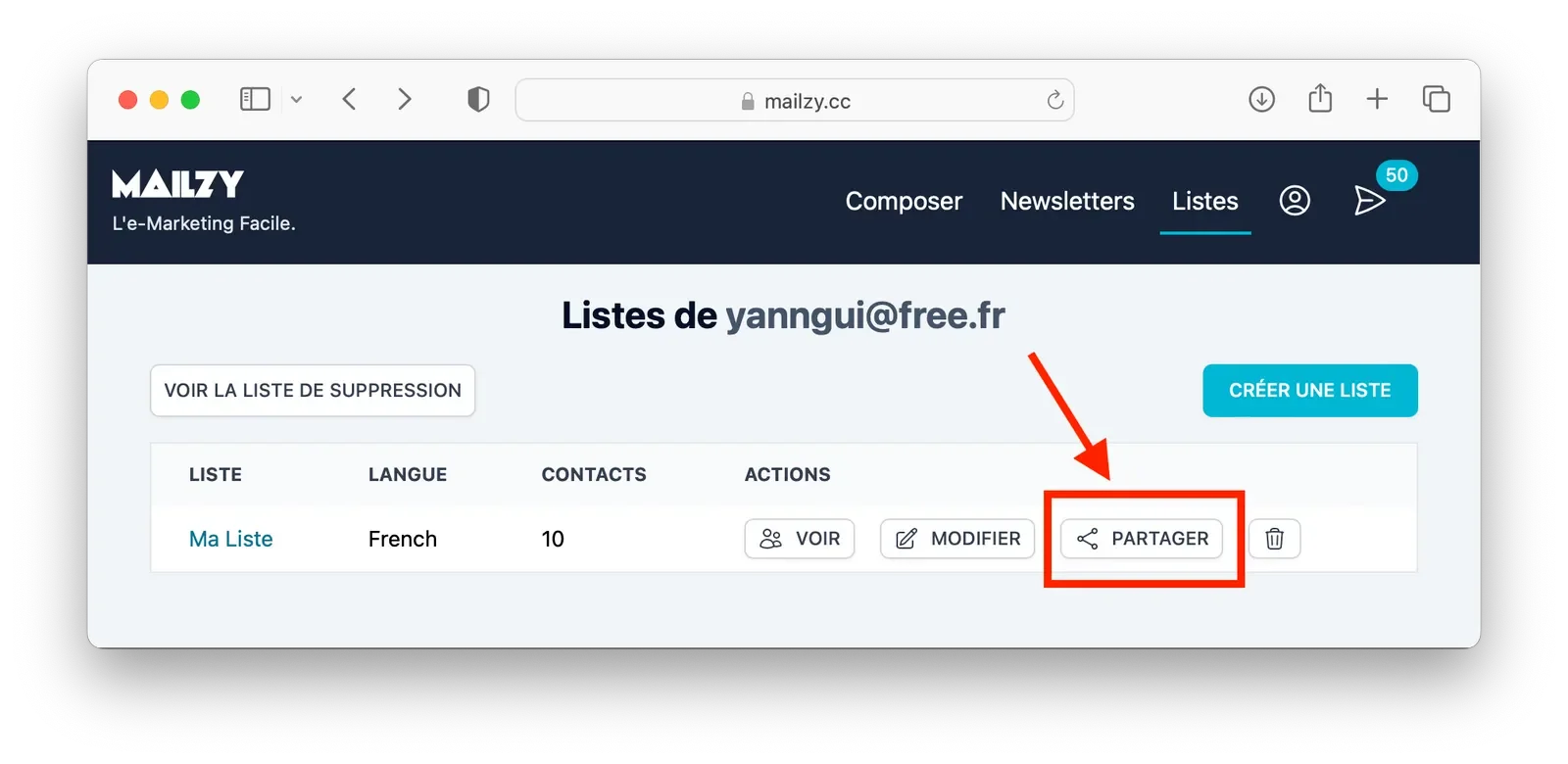
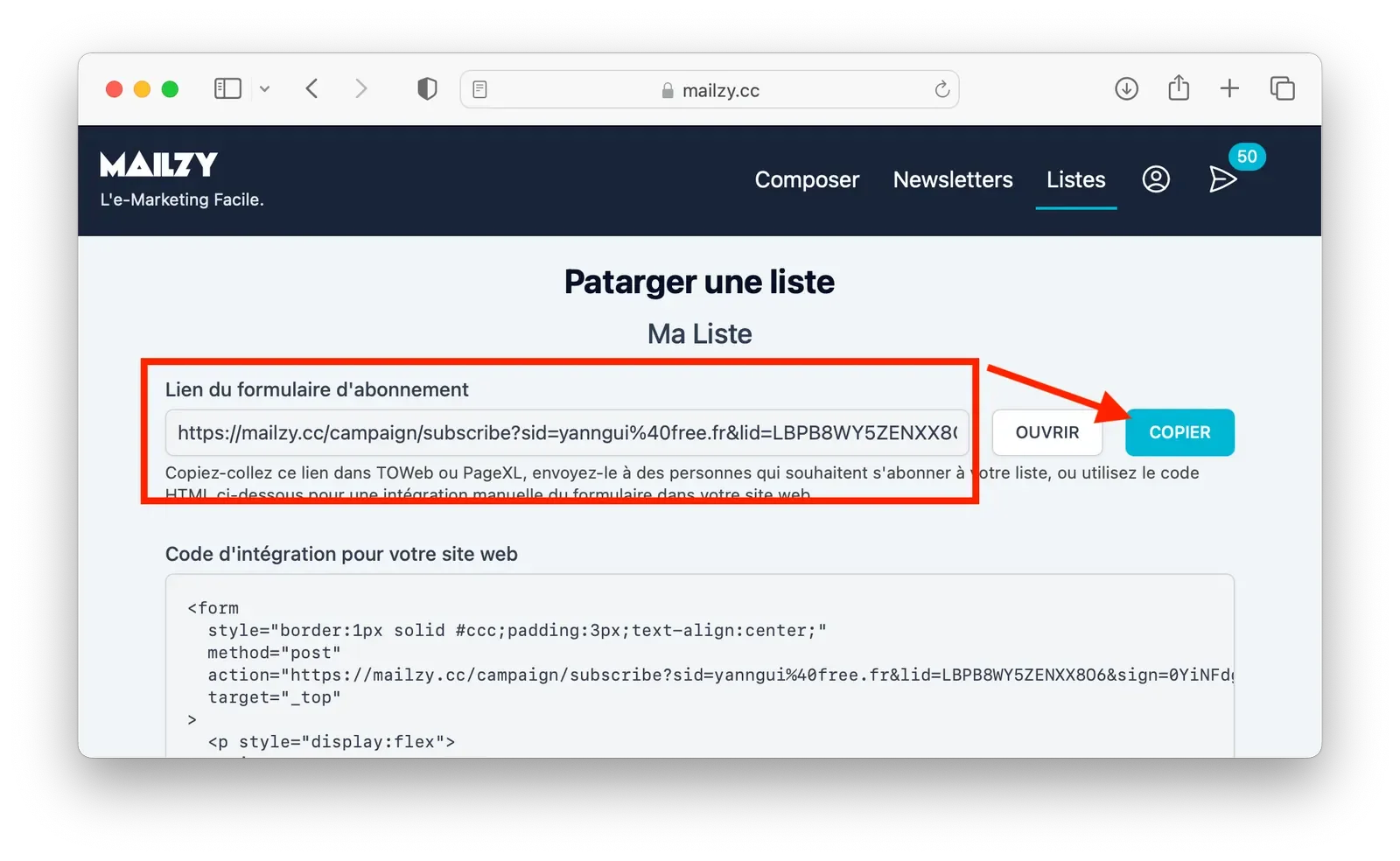
You will then access the list’s sharing information, including the link to your mailing list’s subscription form. To add this link to TOWeb or PageXL, click the COPY button so that the link is placed on the clipboard:
STEP 2: PASTE THE SHARING LINK INTO YOUR WEBSITE
If you use TOWEB

Go to the Publish > Inform your Contacts step in TOWeb, then use the button that lets you paste the link to your Mailzy subscription form, copied to the clipboard in step 1. That’s it!
All that’s left is to make use of your Mailing List, as explained in detail in step 3.
If you use PAGEXL
(1)(2)(3)
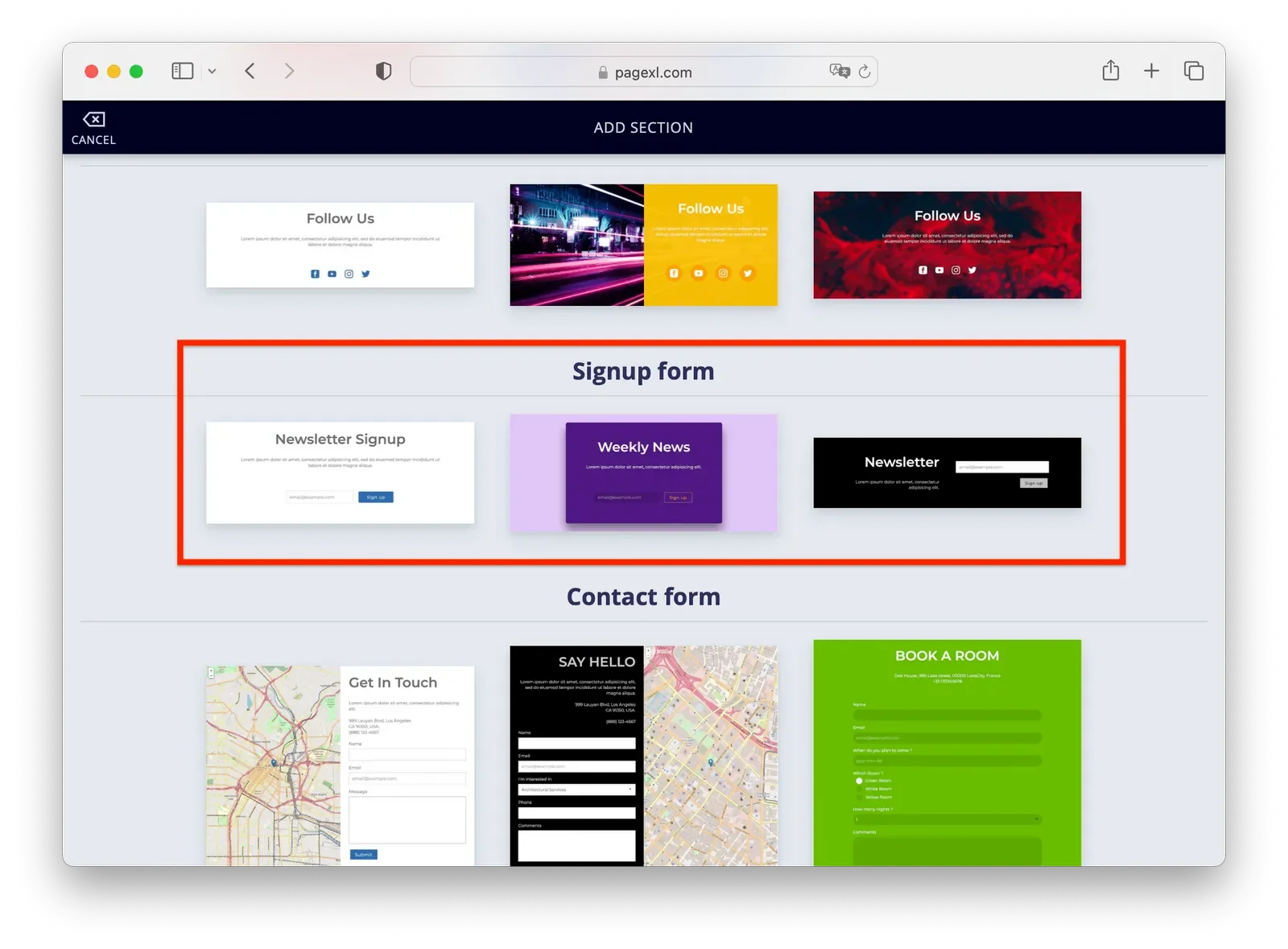
1) If your PageXL website does not yet have a section with a subscription form, add one by clicking the "plus" button on one of the sections of your page, then scroll through the section templates to choose one of the default ones for your visitors’ subscriptions (image 1).
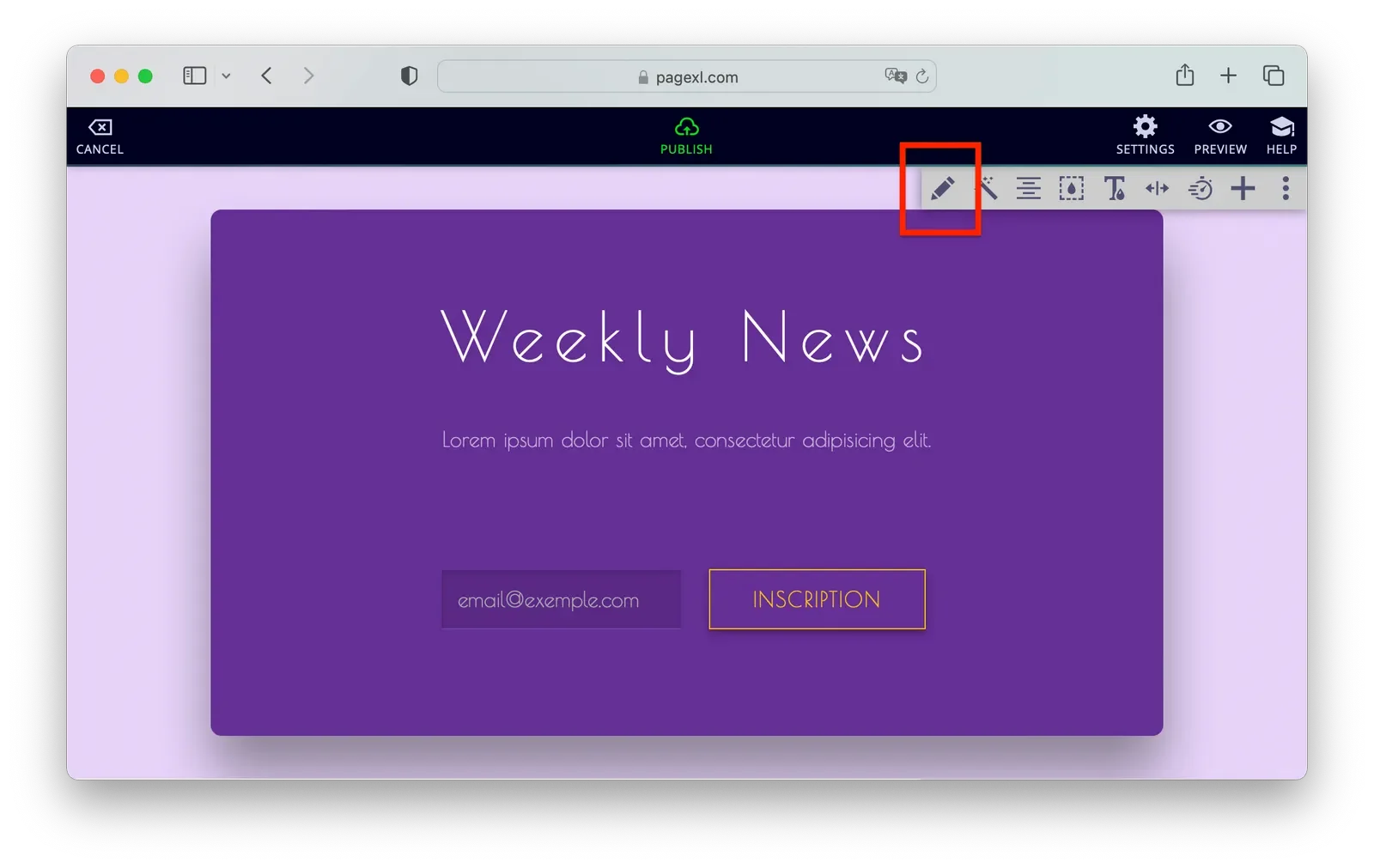
2) Click the "pencil" icon to edit the content of the section you have just added (image 2).
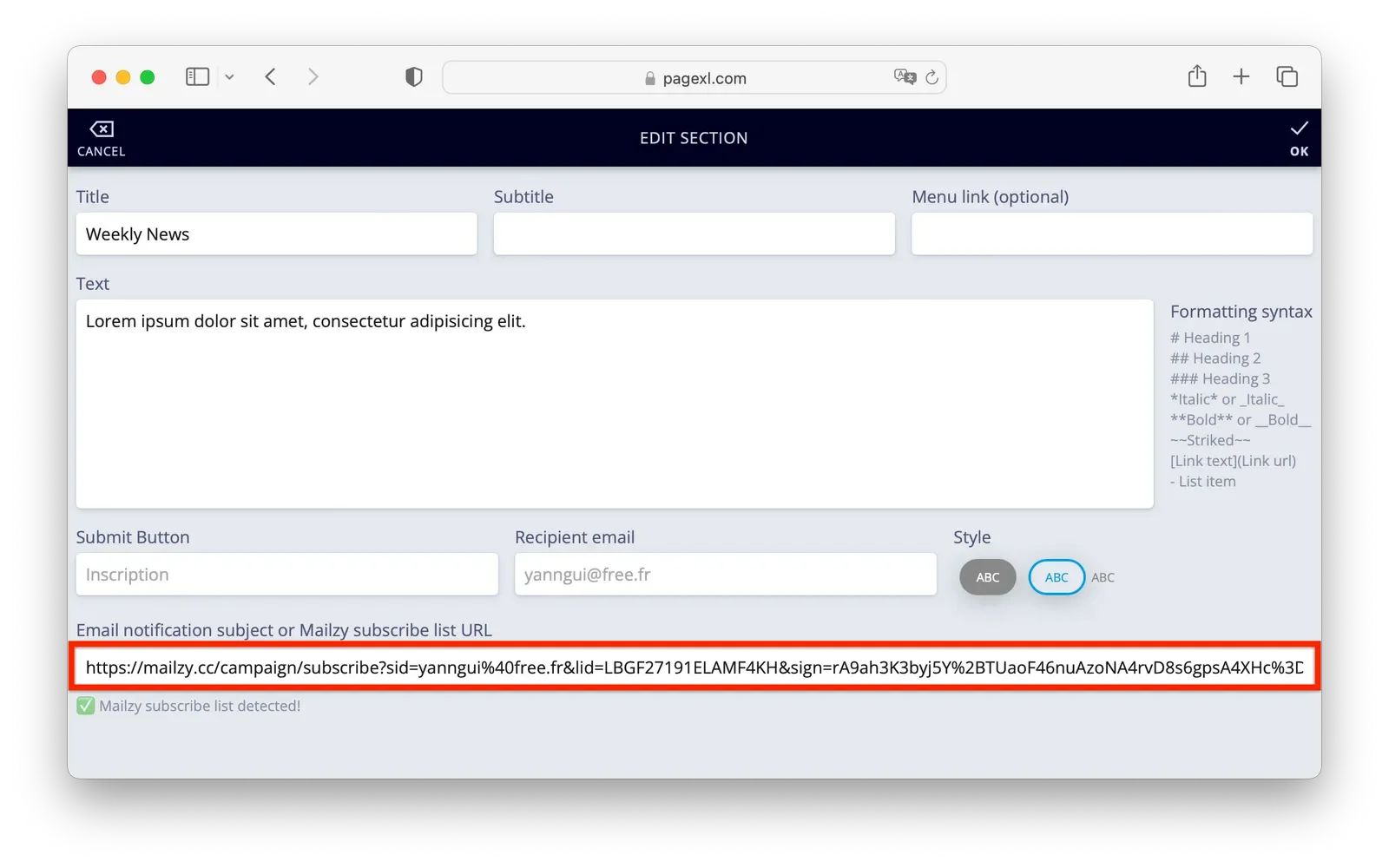
3) Then place your cursor in the input field shown below and paste the link to your Mailzy subscription form (Right-click + Paste or CTRL+V), which was copied to the clipboard in step 1 (image 3).
Then click OK at the top right to save the edited section, and republish your PageXL website to test your subscription form online! All that’s left is to make use of your Mailing List, as explained in detail in step 3.
STEP 3: MAKE USE OF YOUR MAILING LIST
Your mailing list will now be fed by the visitors to your TOWeb or PageXL website without you having to do anything. Note that the same list can be fed by several TOWeb and/or PageXL websites, which was impossible before. Or several lists by the same website, especially if your website is multilingual and you send your newsletters in different languages.
All you have to do is use Mailzy to view your contact lists and send them newsletters to promote your website and multiply your turnover tenfold by keeping them informed: news, coupons, events, sales...
Below is how to create, step by step, the first newsletter that will use your list; 50 sending credits are offered when you create your Mailzy account, so use them, it’s free!
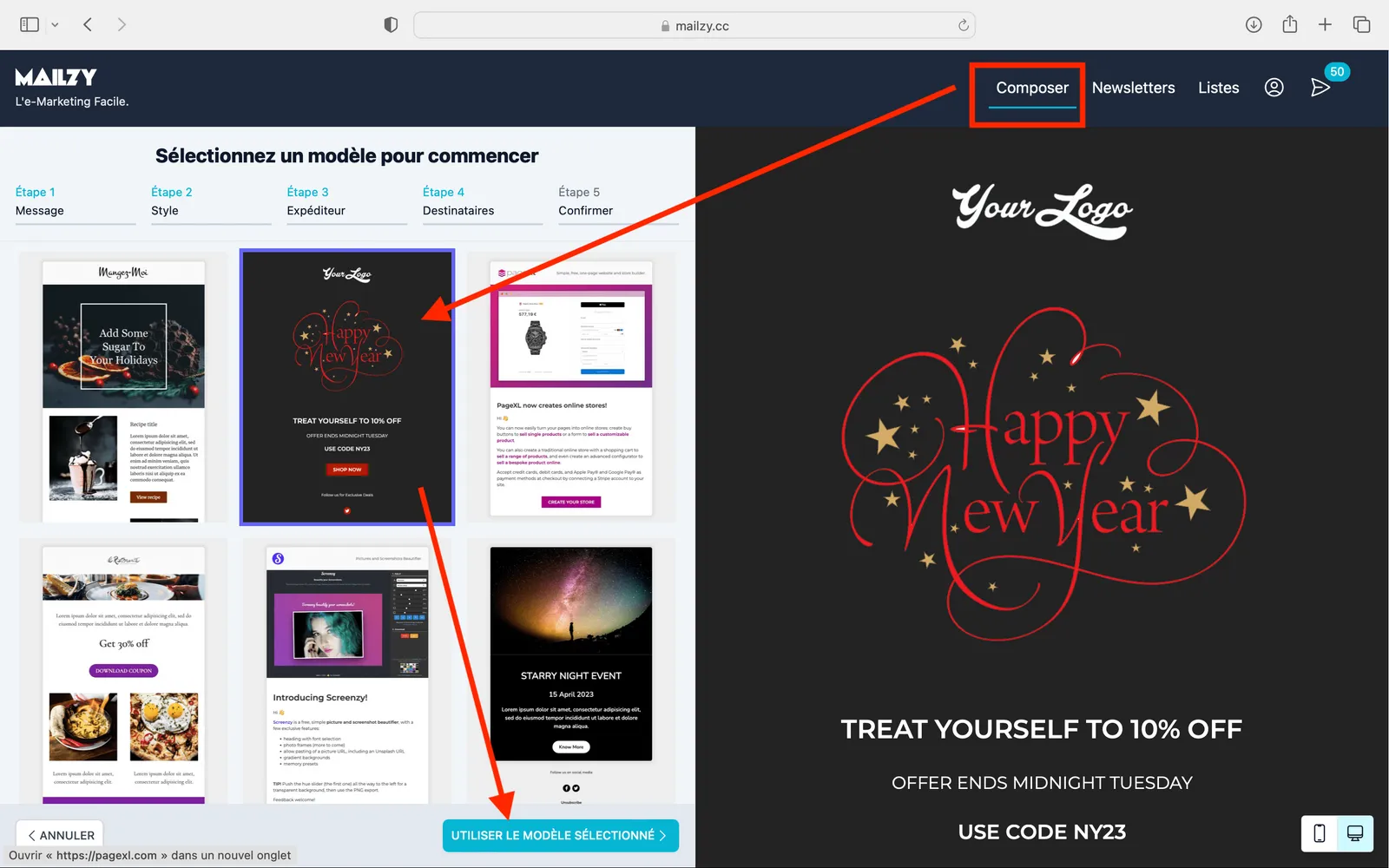
Choose a newsletter template
Open Mailzy again in your browser by clicking here to access the Compose screen, choose a newsletter template, then click the USE THE SELECTED TEMPLATE > button
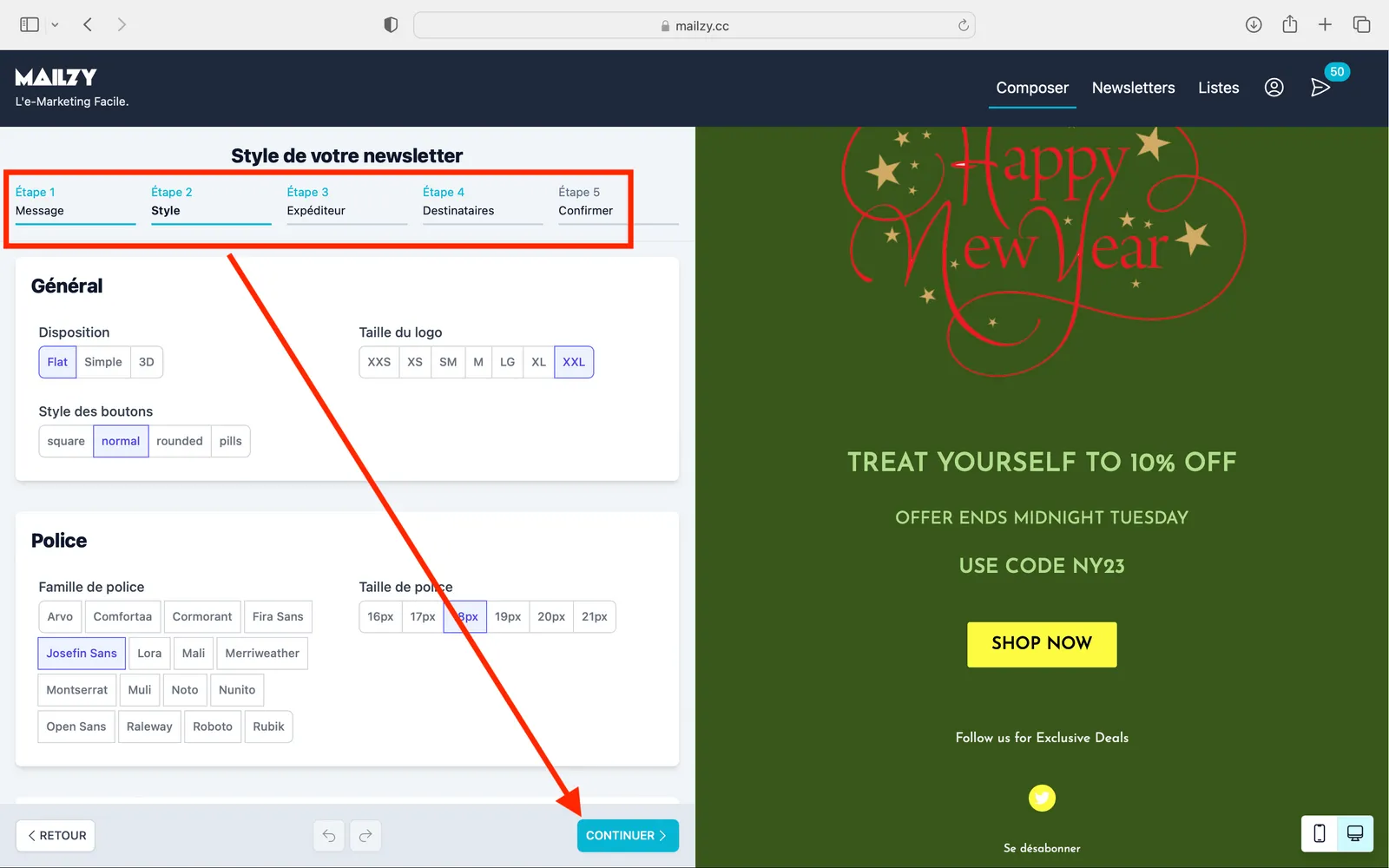
Adapt the template to your brand
Once the template is selected, adapt it in Mailzy in 5 steps: message content, style (as shown here), sender, recipients, and finally confirmation. Click the CONTINUE > button to move from one step to the next:
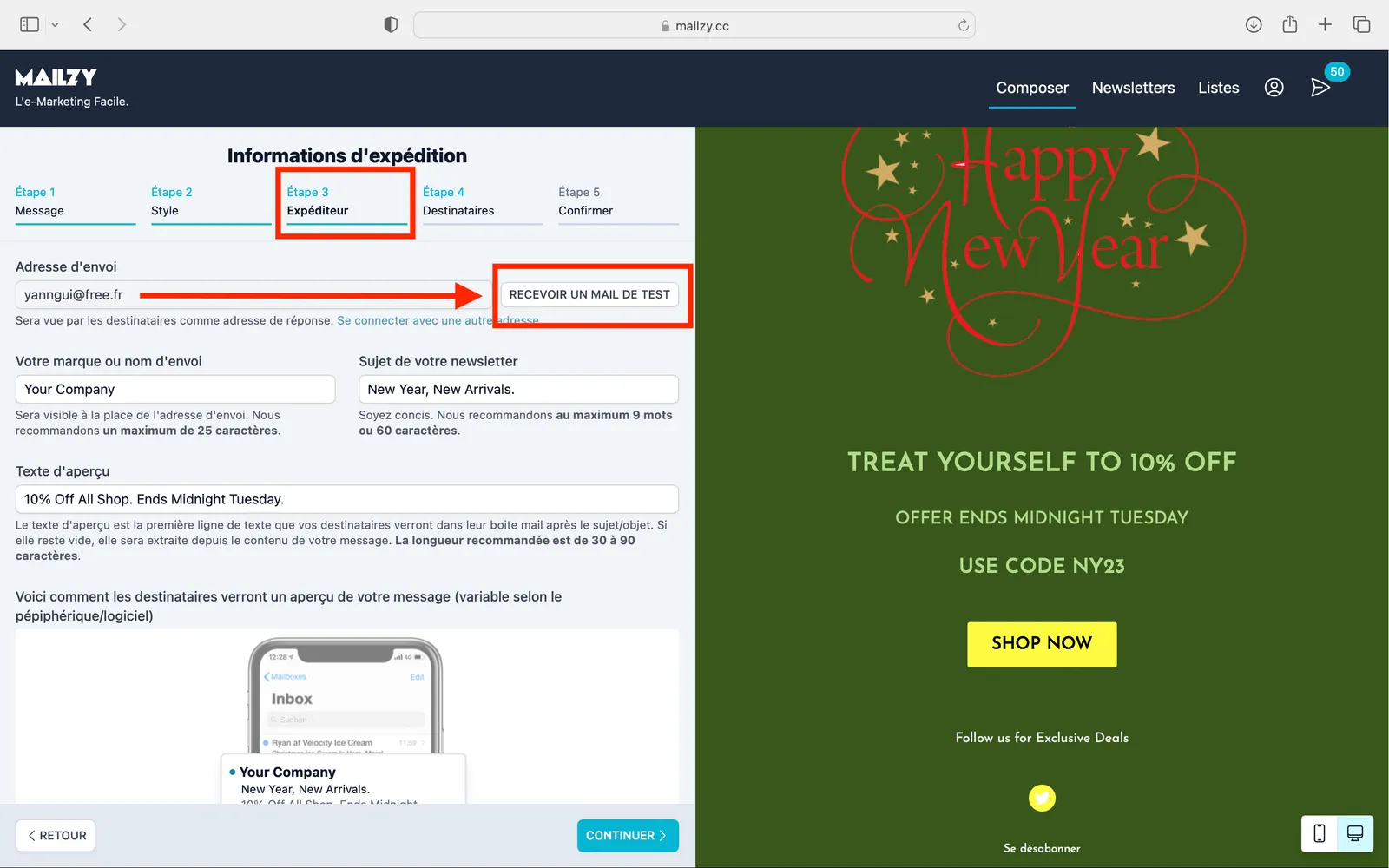
Send yourself a test/preview email
In the Envelope step, where you define sending settings such as the newsletter subject or your brand name that will be displayed instead of the sender address, you can send yourself a preview of the email your recipients will receive. It is recommended to send this test, for example to check that the links in your newsletter work properly:
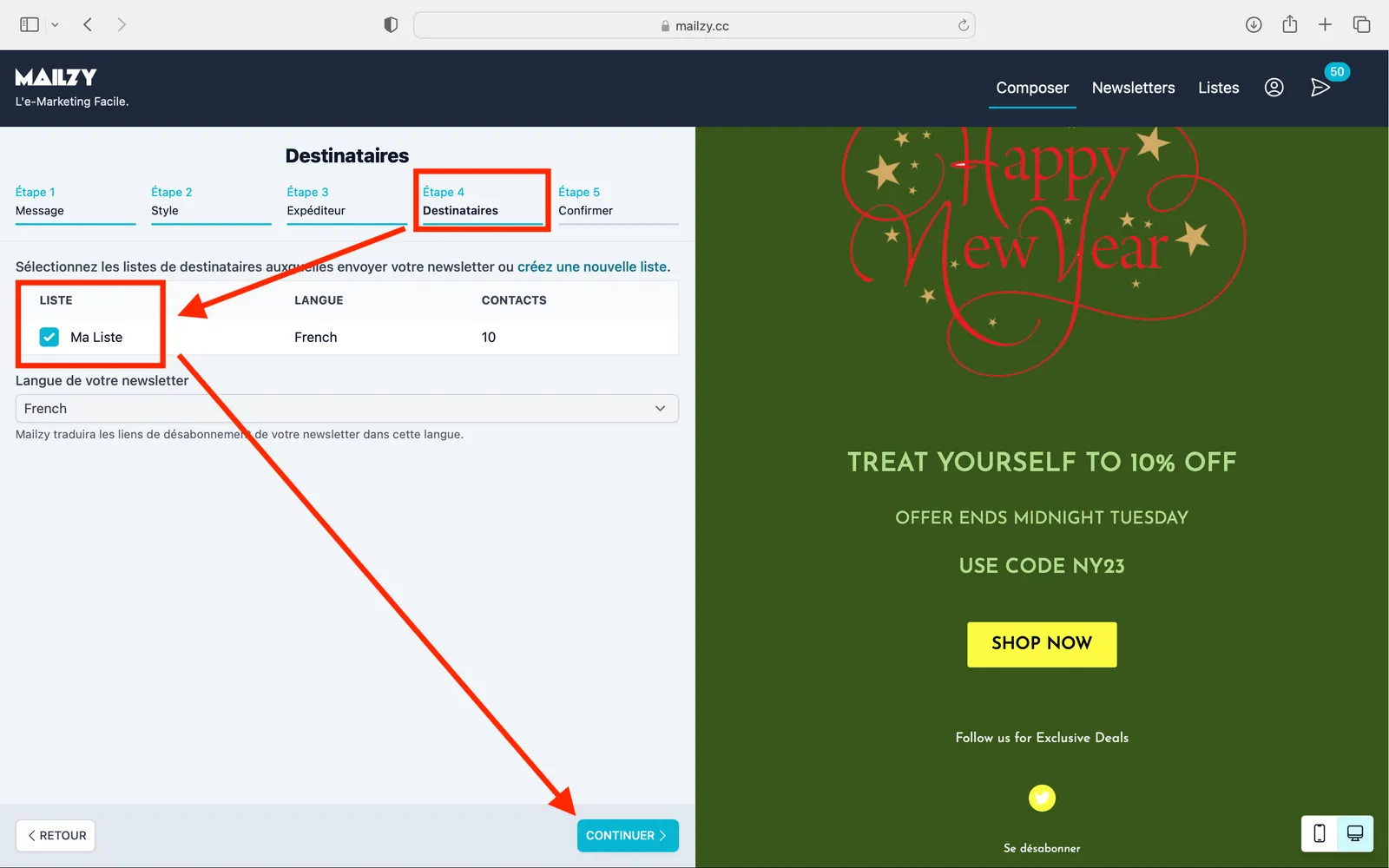
Select the recipient lists
This is the step where you will see the list you created in step 1, which has been linked to your TOWeb or PageXL website! Select it, then click CONTINUE.
Confirming and preparing the newsletter
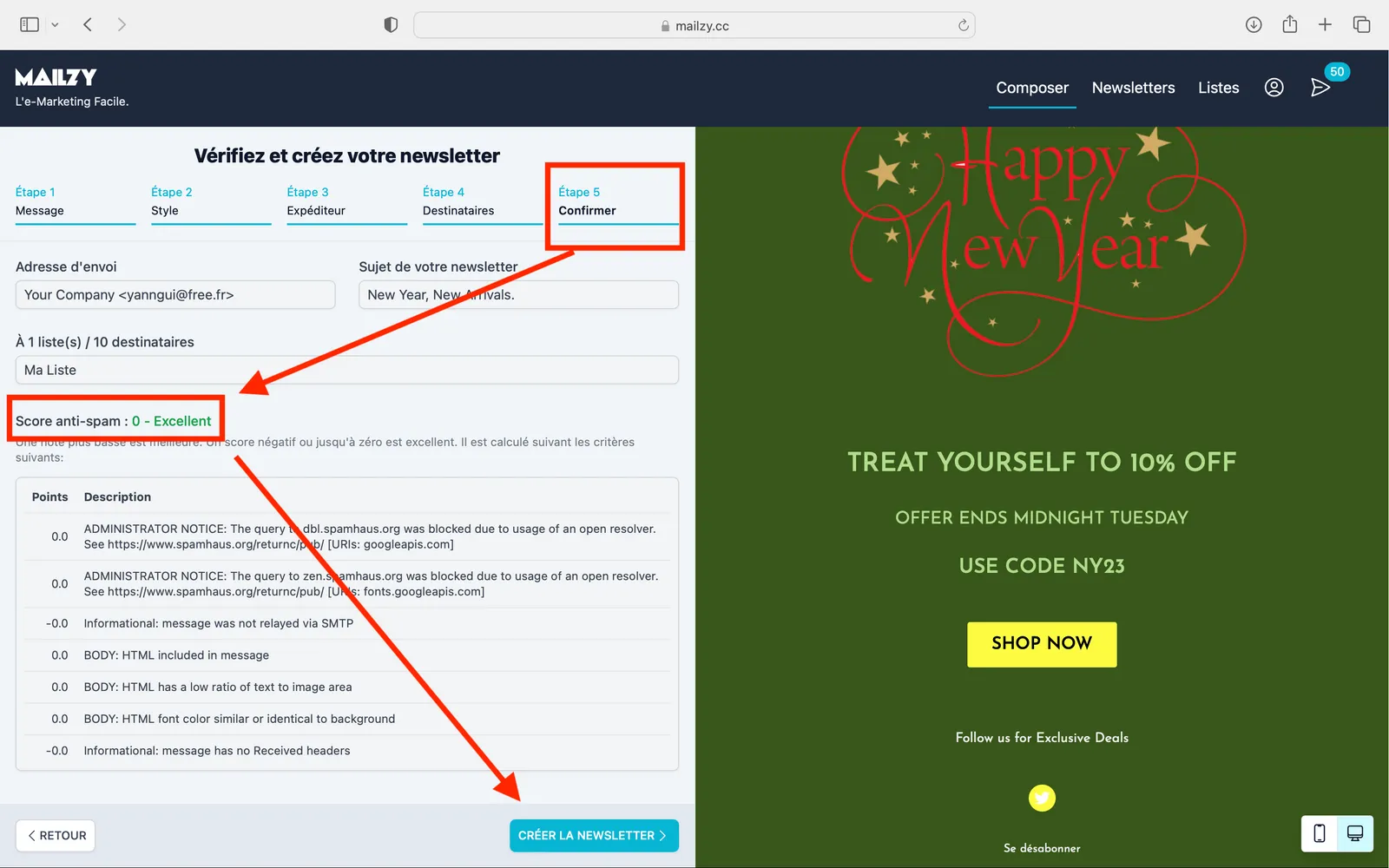
In the last step, Mailzy will run your newsletter through a spam filter to validate it. If it passes the test, you can click the CREATE THE NEWSLETTER button.
Sending your newsletter
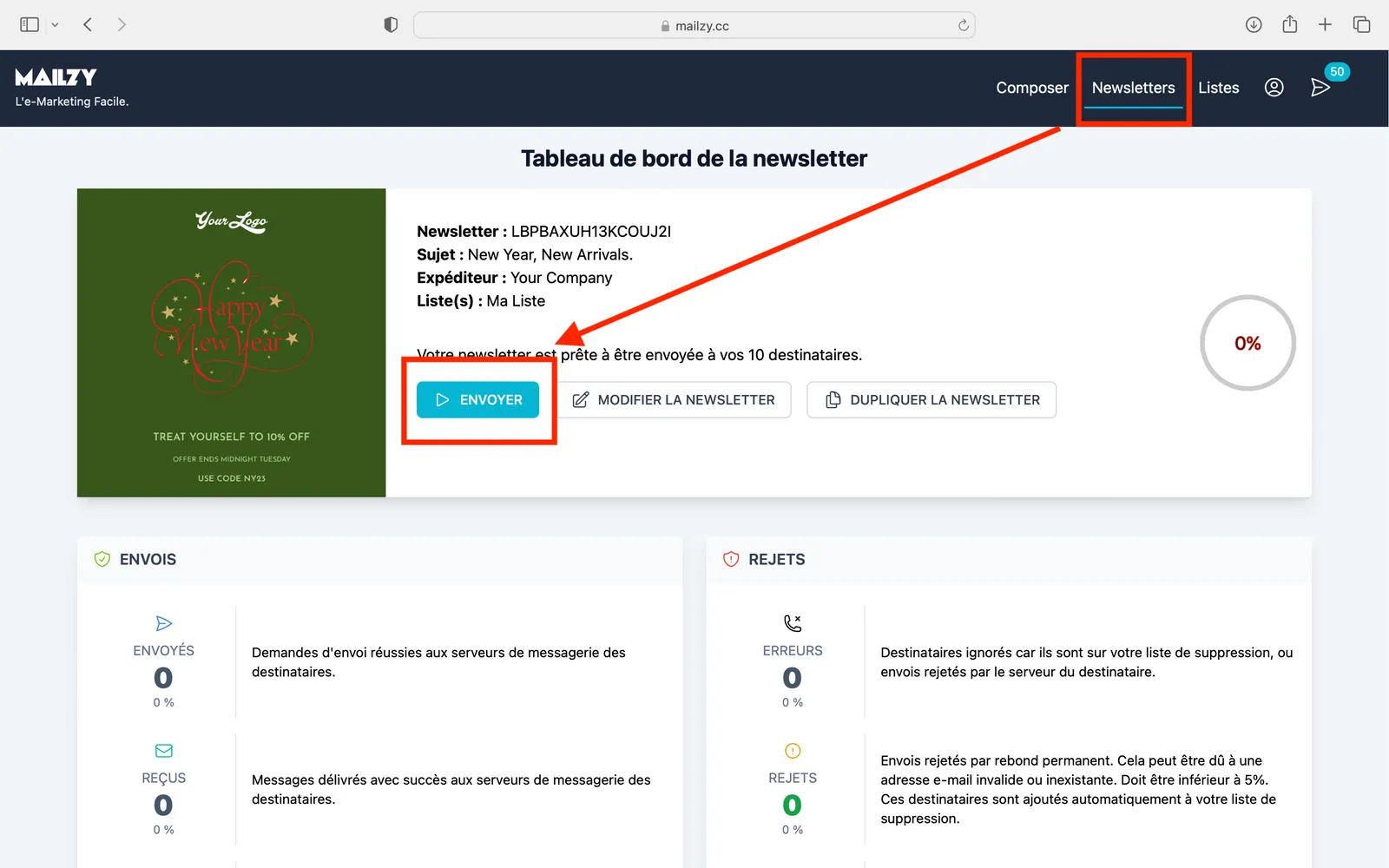
You will be redirected to the Newsletters menu in Mailzy, on the dashboard of the one you have just created. All you have to do is click SEND to send it to all the contacts in your list. To do this you must have enough sending credits. In the illustration below, the top right shows that the user has 50 credits, so the newsletter can be sent to the 10 recipients in the list, leaving a balance of 40 credits:
View sending statistics in real time
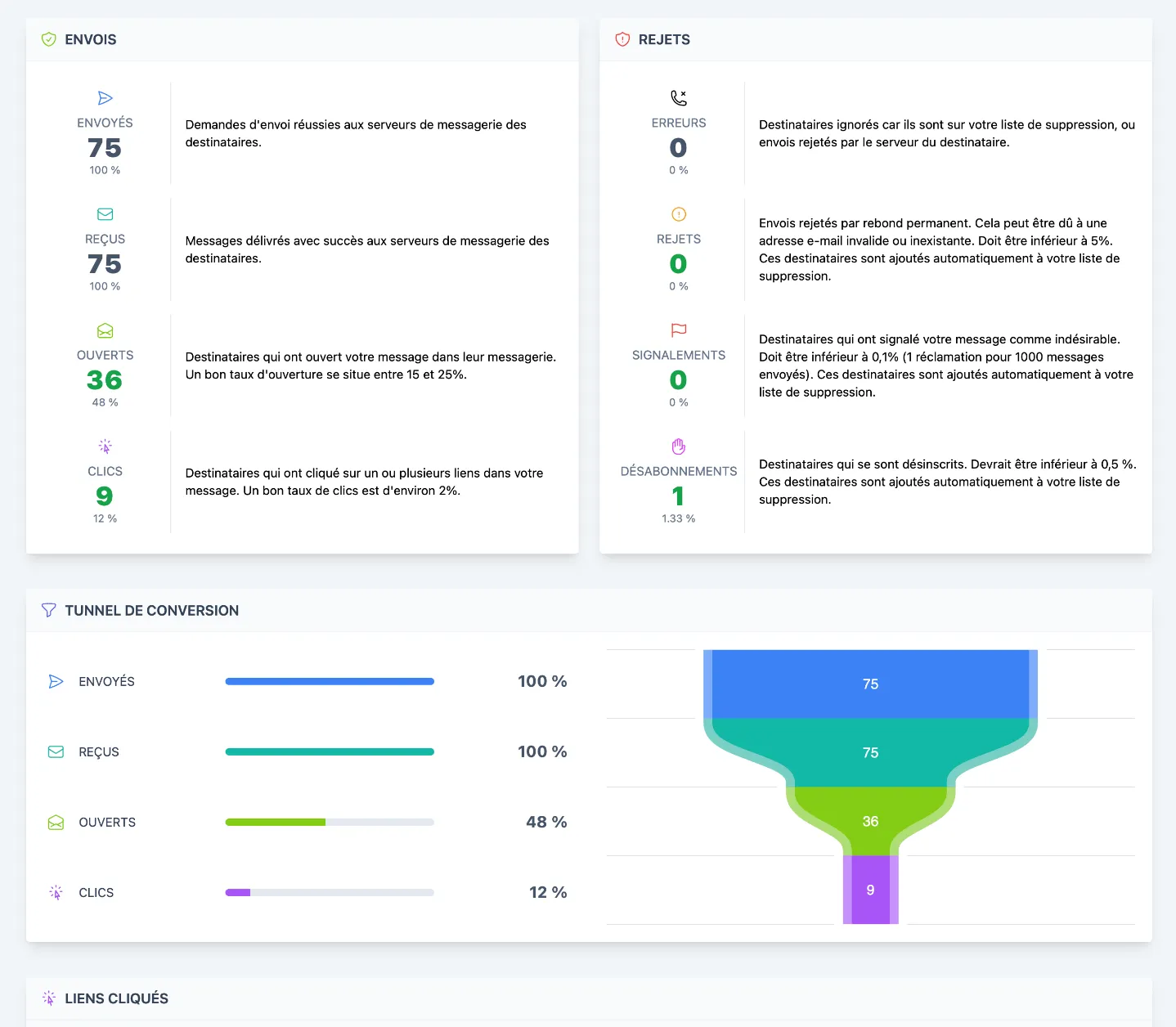
Once sending has started, Mailzy will update the dashboard page in real time to show you the sending statistics, the open rate, click rate and most-clicked links, as well as the sending and delivery time for each recipient. Mailzy will also automatically handle bounces and unsubscriptions to remove from your mailing lists any contacts that do not exist or wish to unsubscribe. You have nothing to manage to comply with the relevant legislation!
That’s the end of this tutorial! As list management with Mailzy is completely free, we strongly encourage you to set up a Mailzy-managed subscription form on your TOWeb or PageXL website; there is no limit to the number of contacts.
This does not commit you to using Mailzy to send your newsletters, but you do get 50 free credits when you first log in to Mailzy to send a newsletter completely free of charge.
If you need help setting up your lists or would like to give us your feedback on this tutorial, feel free to write to us at contact@mailzy.cc or via the support built into TOWeb or PageXL. We have also opened a section dedicated to Mailzy on the help forum.