

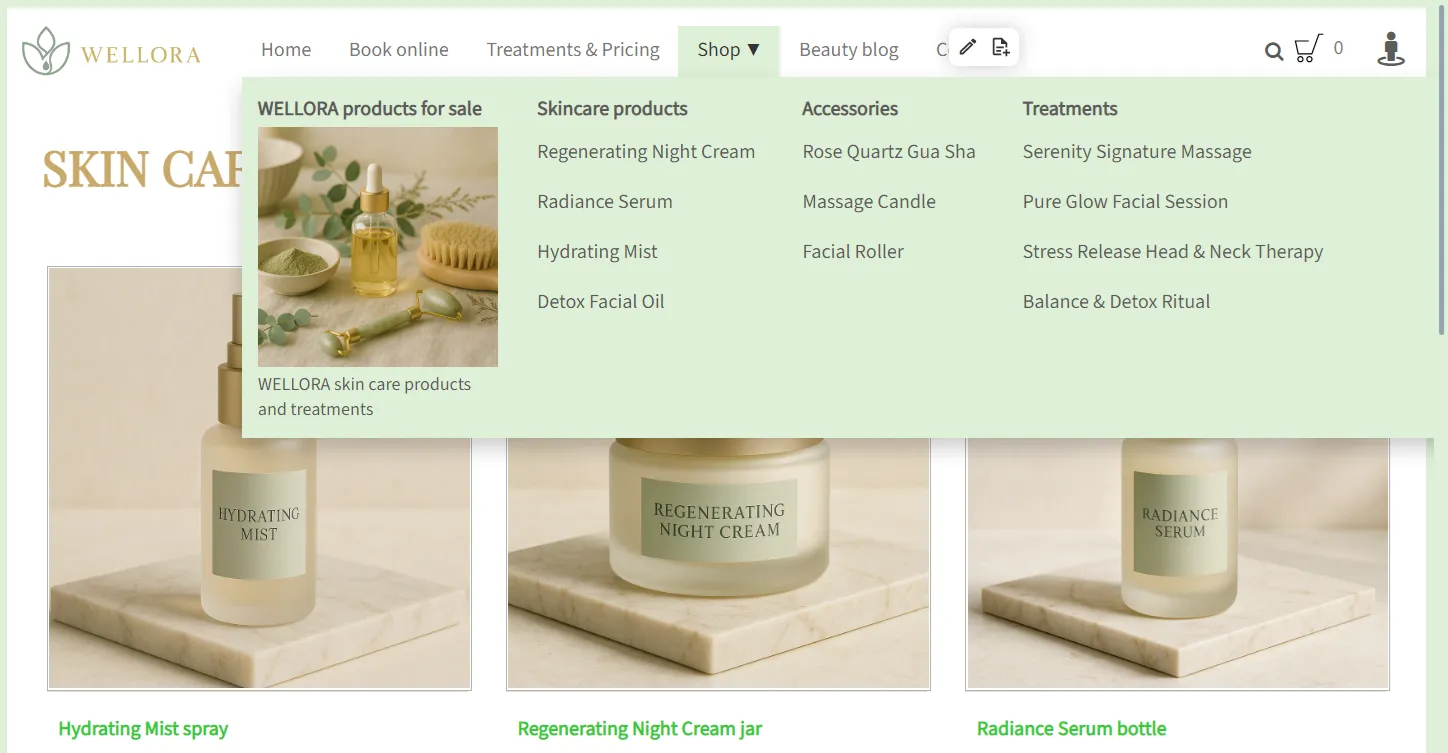
With version 14, TOWeb introduces native support for Mega Menus. This type of menu, now common on e-commerce and content-rich sites, can display much more than a simple list of links: images, headings, categories and clear hierarchies can be shown as soon as the menu opens.
The goal is simple: improve navigation, make important pages easier to reach and make the site clearer, especially when it contains many sections.
What is a Mega Menu?
A Mega Menu is an extended navigation menu that usually opens when you hover over or click an item in the main menu.
Unlike a classic menu, it can contain:
- several columns of links
- category headings
- a featured image
- a short descriptive text
This type of menu is particularly well suited to:
- e-commerce sites
- showcase sites with many pages
- institutional or non-profit sites
- sites offering several services or product ranges
Mega Menus in TOWeb 14
In TOWeb 14, Mega Menus are built directly into the site's navigation system.
They are configured from the main menu management window, accessible at any time via the CTRL+M shortcut.
Each Mega Menu can be made up of:
- an optional first column with an image, a heading and a text
- several columns of links, each of which can represent a category
- a structure that can be fully customized to your needs
You can create several Mega Menus on the same site.
The WELLORA template supplied with TOWeb 14 includes an example of a Mega Menu for its “Shop” section.
It illustrates a typical use, with a visual presentation followed by 3 product categories arranged in columns.
Why use a Mega Menu?
The main benefit of the Mega Menu is a better user experience as the site grows denser.
In practice, it lets you:
- reduce the number of clicks needed to reach a page
- make important categories visible from the very first level
- avoid overly long drop-down menus
- structure information clearly
On an e-commerce site, for example, it lets you present the different product ranges straight away.
On a showcase site, it makes services, key pages or practical information easier to reach.
Customisation and styles
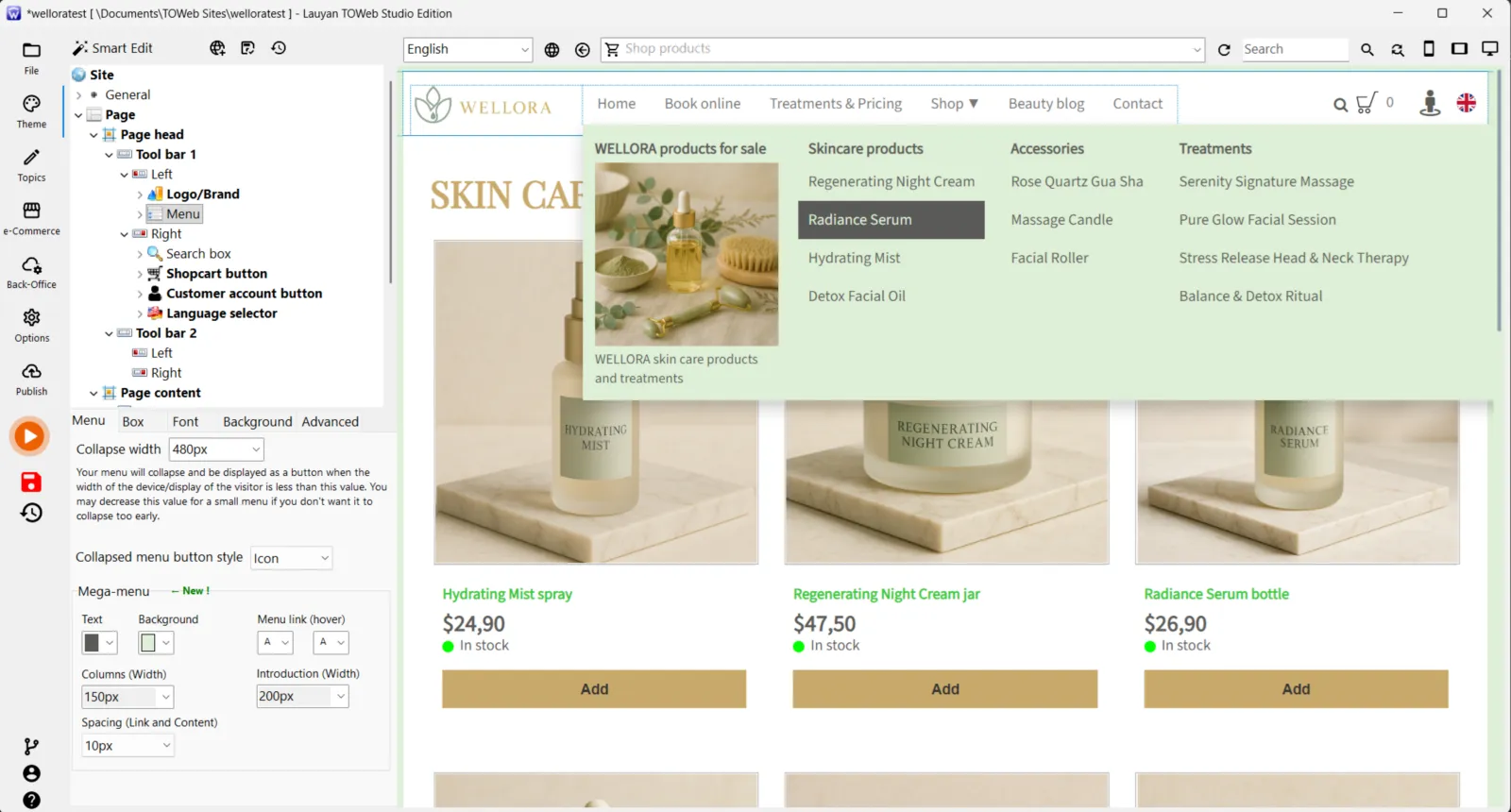
The look of Mega Menus can be adjusted in TOWeb's CSS editor, in the section dedicated to the menu.
In particular, you can customise:
- the main colours
- the column width
- the spacing
- the content alignment
This lets you match the Mega Menu to the site's visual identity without breaking the overall consistency of the theme.
Setting up a Mega Menu in TOWeb 14
Creating a Mega Menu takes just a few steps:
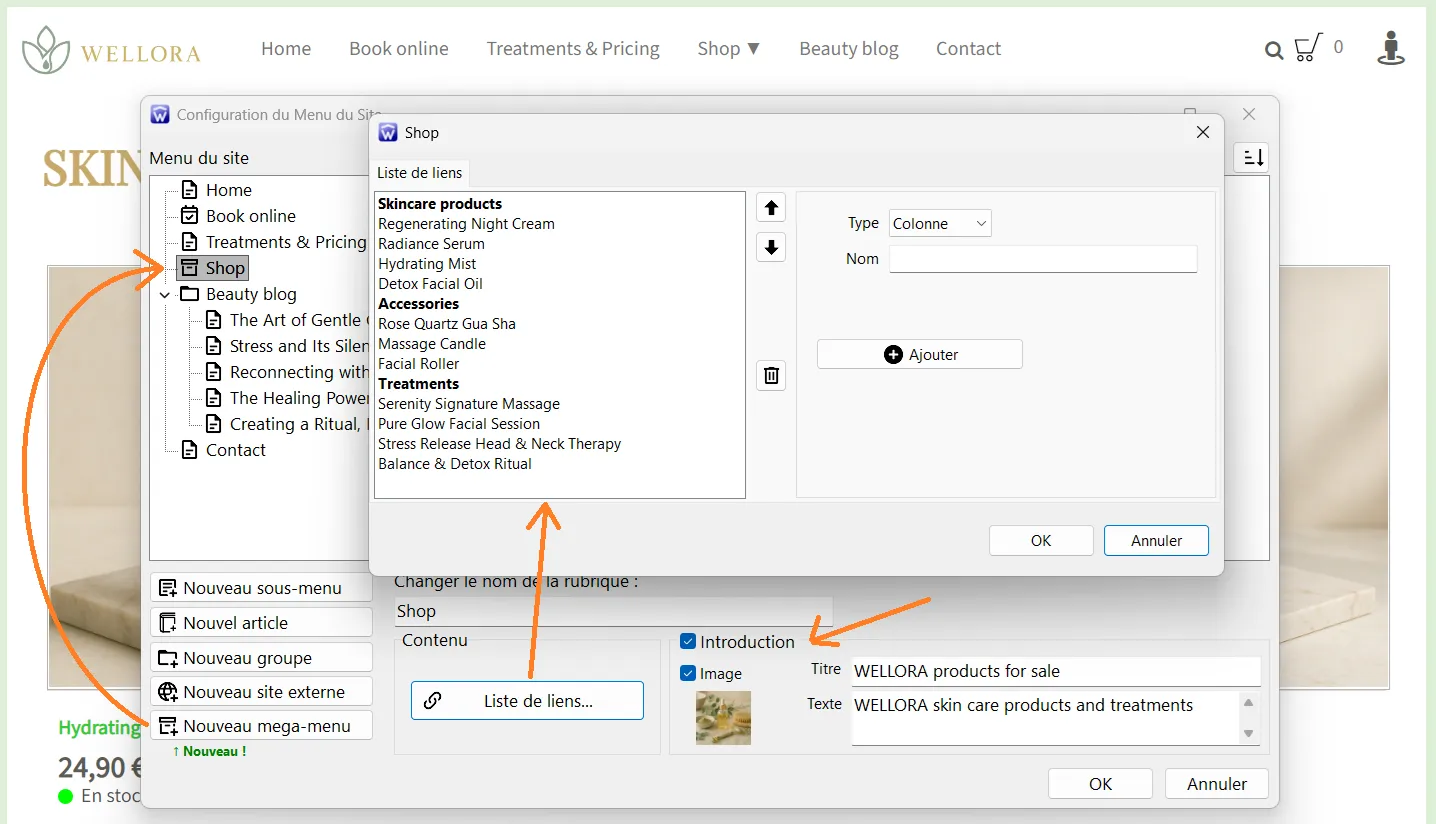
- Open your site's main menu management CTRL+M.
- Click the New mega menu button (see the image in the previous paragraph "Mega Menus in TOWeb 14").
- Tick the Presentation box (optional) if you want your mega menu to start with a column containing a photo and/or text representative of its content.
- Click the List of links" to add your links and columns.
- Finally, adjust the styles of your site's mega menus from the Menu element of the Theme CSS editor (see the image in the previous paragraph "Customisation and styles").
- Publish the site.
A menu designed for growing sites
The Mega Menu is especially useful as a site evolves over time.
It lets you add new sections or categories without overhauling the whole existing navigation.
Combined with TOWeb 14's other new features (tabs, side menu, quick section search), it is an effective tool for keeping a site clear and organised, even as it becomes more complex.
Going further with TOWeb 14
All the new features introduced in TOWeb 14 are detailed on the following page:
→ All the new features in TOWeb 14
Upgrade your license to TOWeb 14
To upgrade:
→ Install TOWeb 14 on the computer where your current version of TOWeb (1 to 13) is installed, launch TOWeb 14 and click Licence / About in the File step.
→ Or have your latest TOWeb purchase invoice to hand and go to the licence upgrade page for TOWeb V14
If you have any difficulty, you can contact our sales team via our contact form.