

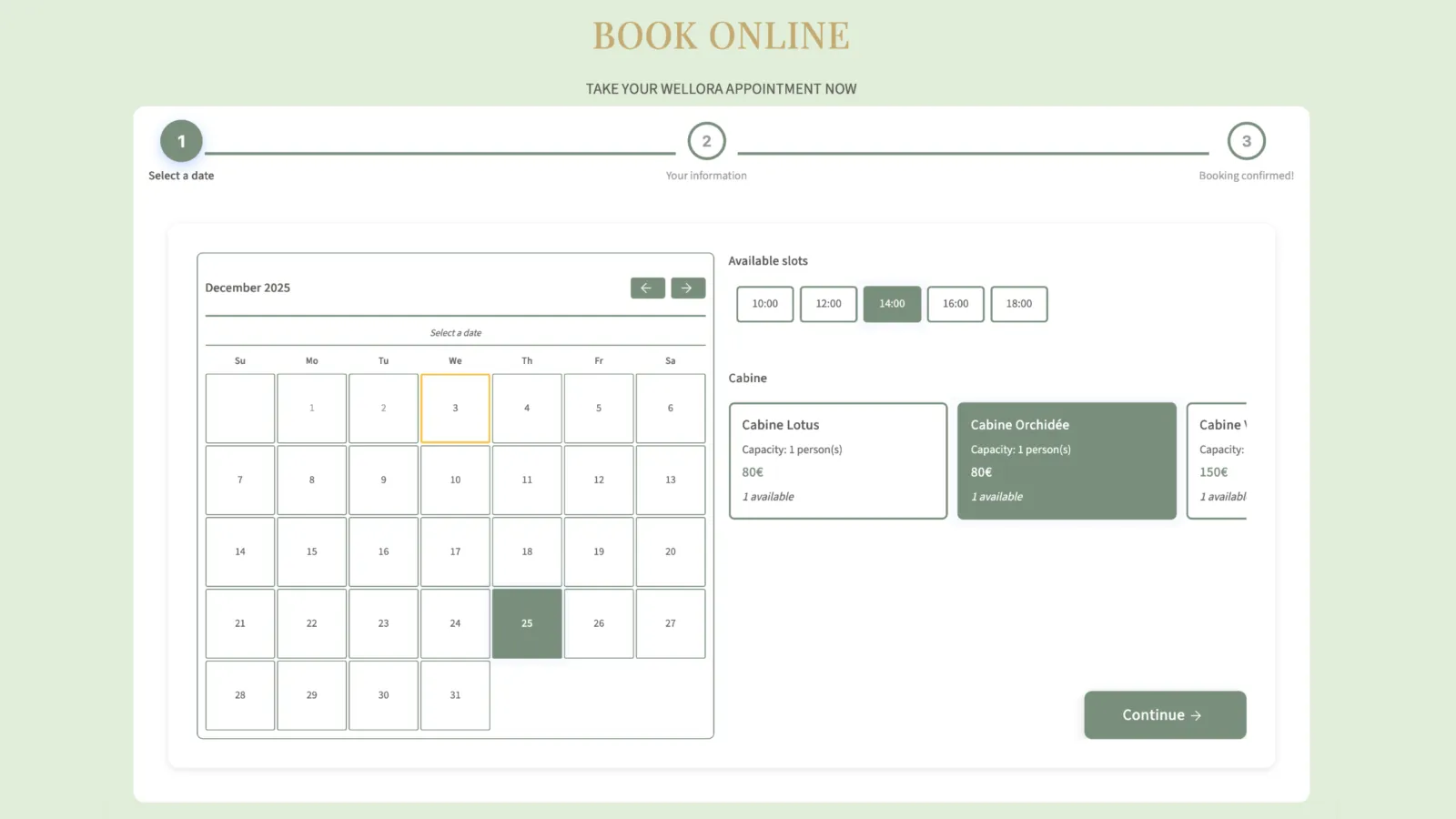
With version 14, TOWeb includes a true online booking system, directly usable in your pages, with no external extension, third-party service or subscription.
This feature is for anyone who offers services, time slots, rentals or scheduled services, and who wants to let their visitors book simply from the site.
Version 14.01 also brings an important addition: automatic synchronization with an external calendar in iCal/ICS format. In particular, it lets you connect a TOWeb site to platforms such as Airbnb or Booking, to avoid any double booking.
This article presents how the booking widget works, its practical uses and this new synchronization.
Online booking, now a common practice
In many fields, visitors now expect to be able to book online.
This includes in particular:
- seasonal rentals (holiday cottages, B&Bs, apartments)
- health or wellness professionals
- craftspeople and service providers
- coaches, trainers and consultants
- photographers, beauty salons or beauticians
- associations, clubs and workshop organizers
Letting a customer book directly from the site simplifies the process, reduces exchanges by email or phone, and improves the perceived availability of the service.
With TOWeb 14, this feature is built in natively, with no particular complexity.
The booking widget built into TOWeb 14
The booking widget lets you configure different types of services:
- bookings by time slot
- bookings by the day or by period
- services linked to resources (room, equipment, practitioner…)
You can set fixed or variable rates, block certain dates, and view and manage bookings from the site's Back Office.
Each booking can trigger confirmation emails, and the history remains accessible at any time.
An example implementation is available in the new WELLORA template.
The widget documentation is available here: https://www.lauyan.com/fr/bookings.html
Automatic iCal / ICS synchronization
Version 14.01 introduces a particularly useful feature for rental sites: synchronization with an external calendar in iCal/ICS format.
This option lets you connect the TOWeb booking widget to a schedule already managed on another platform (Airbnb, Booking, Abritel, VRBO, etc.).
How it works
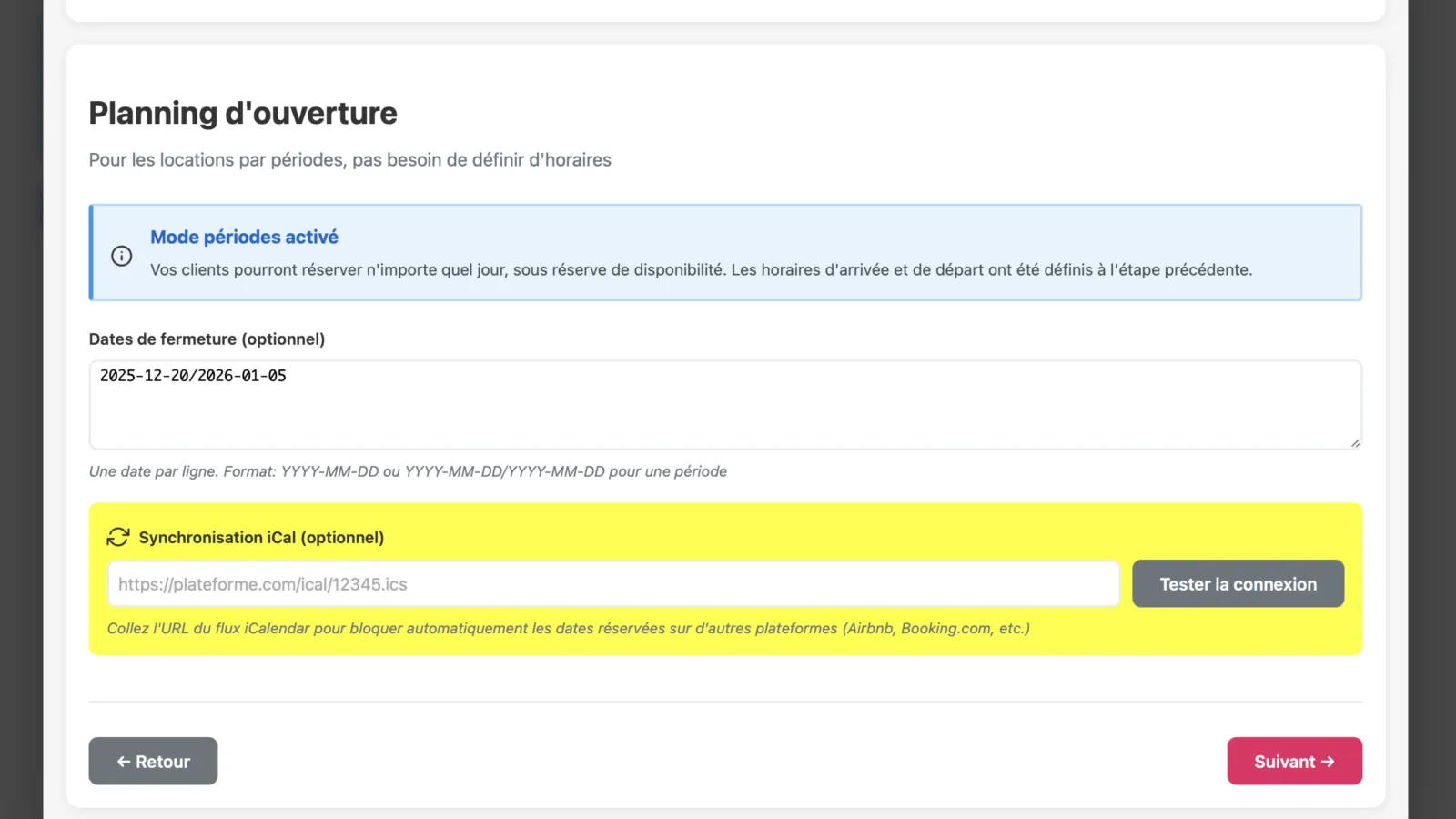
On the external platform, simply get the URL of the iCal file (.ics) associated with the accommodation or resource.
This URL is then entered in the booking widget configuration in TOWeb.
Once the site is published:
- existing bookings on the external platform are taken into account automatically
- the dates concerned are blocked in the TOWeb widget
- no republishing of the site is needed when new bookings are made
TOWeb acts as a secondary calendar, synchronized with the main schedule.
The practical benefits of iCal synchronization
This synchronization brings several practical advantages:
- availability stays consistent across several platforms
- the risk of double booking is greatly reduced
- the TOWeb site can stay online without daily maintenance
- setup comes down to entering a single URL
It is a solution well suited to accommodation providers who want to keep their visibility on specialized platforms while offering booking from their own site.
Screenshot of the configuration of the “iCal / ICS URL” field in the TOWeb 14.01 interface
A native solution, with no external dependency
The booking widget runs entirely within the TOWeb environment:
- no third-party plugin
- no additional subscription
- no dependency on an external service
- full control over the data
Bookings can be viewed from the Back Office, just like the site's other features.
Adding a booking widget in TOWeb 14
Adding the widget takes just a few steps:
- Add a new section to your site of the type an online booking system.
- Then select the type of booking (by dates or by hours) and choose from the templates provided the one closest to your business.
- Once in the booking section you have created, click the "Configure the widget" button and let the wizard guide you to change or replace the various default texts and options with the ones you choose (resources, opening hours, rates, emails, etc.). The option to enter your iCal/ICS URL is in the Opening hours step.
- At the end of the setup wizard, don't forget to click the Save configuration button.
- Publish your site
Going further with TOWeb 14
The full list of what's new in version 14 is available here:
→ Everything new in TOWeb 14
Upgrade your license to TOWeb 14
To upgrade:
→ Install TOWeb 14 on the computer where your current version of TOWeb (1 to 13) is installed, launch TOWeb 14 and click Licence / About in the File step.
→ Or have your latest TOWeb purchase invoice to hand and go to the licence upgrade page for TOWeb V14
If you have any difficulty, you can contact our sales team via our contact form.